
In short
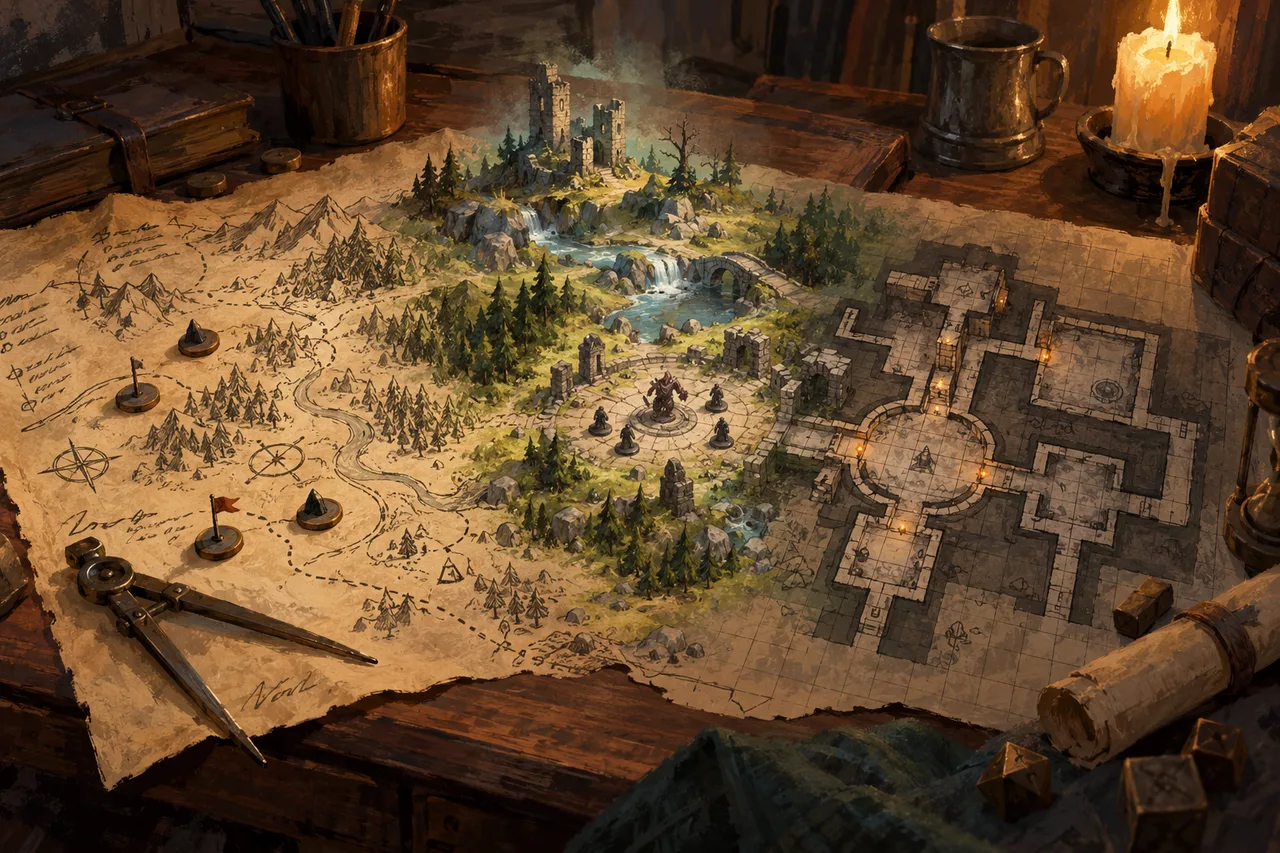
FableRealms can prepare JPG, PNG, MP4, WebM, MOV, MKV and DD2VTT maps for use in WorldBuilder. Once imported, you can add the walls, doors, lighting, fog, grid, tokens and scene details needed for play, regardless of whether the background began as a still image, video or VTT export.
Bring static maps, animated scenes and DD2VTT files into FableRealms, then prepare them with the same practical WorldBuilder tools for walls, lighting, fog, tokens and live Play
You find the right map for next week’s session, download it and then notice the file extension. Perhaps it’s a straightforward PNG. Perhaps it’s a looping video. Perhaps it’s a DD2VTT export containing an image, grid information and walls. The question is the same: can you use it without rebuilding the whole scene somewhere else?
FableRealms supports the common map formats used for virtual tabletop sessions. You can prepare JPG and PNG images, MP4, WebM, MOV and MKV video maps, or DD2VTT files, then open the resulting scene in WorldBuilder. Once it’s there, the useful question changes from “What format is this?” to “What does this location need before the players arrive?”
Use the map you chose, not the format you happened to receive
A DM’s map folder rarely stays tidy. Static battlemaps sit beside animated weather scenes, oversized regional maps and exports from dedicated map-making software. Requiring a separate preparation method for every format would turn a useful library into several small chores wearing a trench coat.
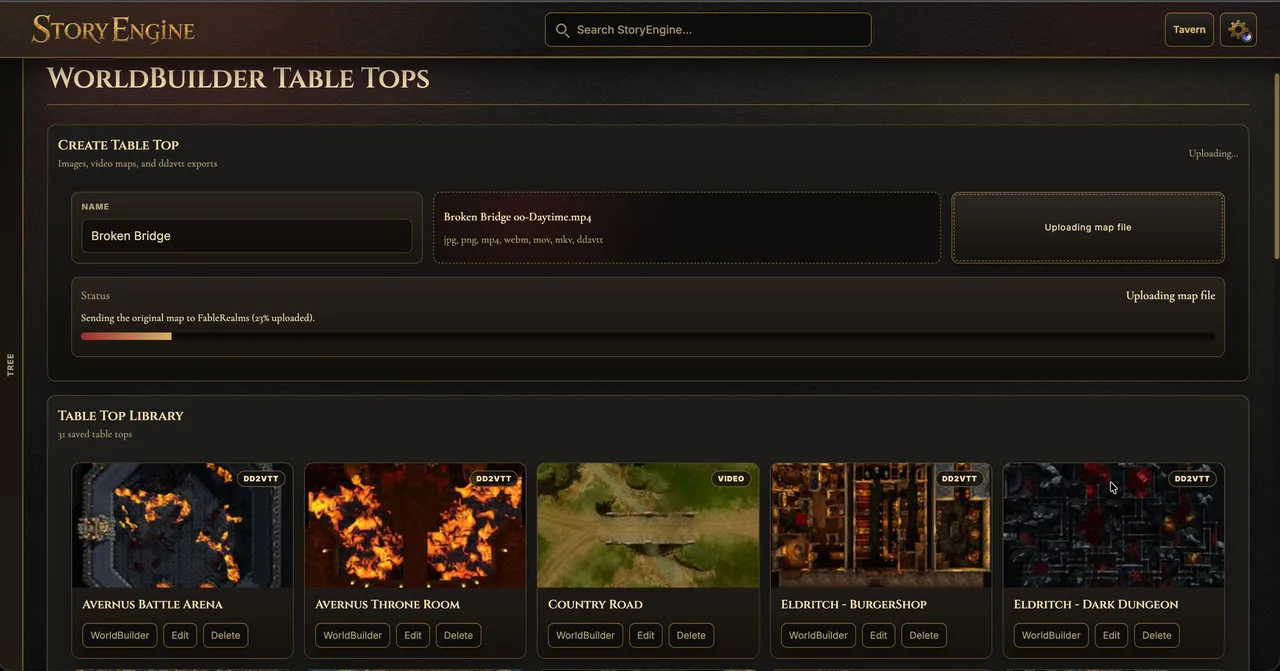
FableRealms keeps the route consistent. The Table Tops library in StoryEngine handles the initial map upload and processing. From its saved tabletop card, you open the scene in WorldBuilder and complete the playable preparation there.
The currently supported input types are:
Static maps: JPG and PNG.
Video maps: MP4, WebM, MOV and MKV.
Structured VTT maps: DD2VTT, also commonly described as Universal VTT.
Video playback still depends on the formats and codecs supported by the player’s browser. Test an animated map on the devices you’ll use for the session, particularly when working with MOV or MKV files. A successful upload doesn’t guarantee that every browser can decode every video stream inside the container.
Use the map you chose, not the format you happened to receive
A DM’s map folder rarely stays tidy. Static battlemaps sit beside animated weather scenes, oversized regional maps and exports from dedicated map-making software. Requiring a separate preparation method for every format would turn a useful library into several small chores wearing a trench coat.
FableRealms keeps the route consistent. The Table Tops library in StoryEngine handles the initial map upload and processing. From its saved tabletop card, you open the scene in WorldBuilder and complete the playable preparation there.
The currently supported input types are:
Static maps: JPG and PNG.
Video maps: MP4, WebM, MOV and MKV.
Structured VTT maps: DD2VTT, also commonly described as Universal VTT.
Video playback still depends on the formats and codecs supported by the player’s browser. Test an animated map on the devices you’ll use for the session, particularly when working with MOV or MKV files. A successful upload doesn’t guarantee that every browser can decode every video stream inside the container.
Choose the generic DD2VTT export where possible
Let the file carry useful scene data without adding assumptions intended for another destination.
A DD2VTT file can contain more than the visible map. FableRealms’ import process extracts its embedded image and grid metadata while retaining the supplied DD2VTT scene data, including geometry and lights that WorldBuilder can load and edit.
When your map-making software offers several export targets, choose its generic Universal VTT or DD2VTT option rather than an export tailored to another platform. Tool-specific variants may contain expectations that aren’t part of the general format.
The DD2VTT file must include its map image. The current importer returns an error when an export contains the scene data but no embedded image. It’s worth checking that export option before uploading, especially if the map-making software offers to package the artwork separately.
In our use so far, we haven’t found a DD2VTT version that FableRealms couldn’t import. That isn’t a promise that every future exporter will behave identically, so keep the original map project and test unfamiliar exports before game night.
Prepare the scene in the same place
Once the scene opens in WorldBuilder, you work with the map as a playable location. You can align the grid, draw walls, place doors, add lights, prepare fog and darkness, position tokens, create zones and attach scene notes.
DD2VTT gives you the strongest head start when it already contains useful grid, wall and lighting data. A JPG, PNG or video is more like a blank stage: the artwork is present, but you’ll usually add its playable structure yourself. Crucially, those backgrounds don’t become second-class scenes. The same WorldBuilder preparation tools remain available around them.
This is the practical meaning of a format-flexible workflow. FableRealms isn’t claiming that an image magically contains the walls found in a prepared DD2VTT file. It means you don’t have to abandon the image or video you chose just because it lacks that embedded information.
Large maps are prepared at several detail levels
Very large map images present a different problem. Loading one enormous image at full detail for every zoom level can be wasteful, while shrinking it into a single small preview makes close inspection look soft.
FableRealms can process a large still map into a tiled image pyramid with WebP tiles, previews and thumbnails. WorldBuilder then selects an appropriate tile level as you zoom. You can see the wider location when zoomed out and retain the source map’s useful detail when moving closer.
Tiling doesn’t create detail that wasn’t present in the original artwork, and it doesn’t make upload time disappear. Larger files still take longer to transfer and process. FableRealms is designed to handle substantial maps, but editors shouldn’t describe uploads as literally unlimited: the reviewed application configuration allows requests up to 500 MB, and the surrounding hosting path may impose a lower practical limit.
Frequently asked questions
Which map formats can I import?
FableRealms accepts JPG and PNG still images; MP4, WebM, MOV and MKV video maps; and DD2VTT files. Video playback depends on browser and codec support, so test the map on the devices intended for the session rather than relying only on the filename.
Should I choose a generic or platform-specific DD2VTT export?
Choose the generic Universal VTT or DD2VTT export where your map-making software provides one. It gives FableRealms the most neutral version of the map data and avoids assumptions added for another destination. Ensure the export embeds the map image as well as its scene information.
Will DD2VTT walls and lights be imported?
Yes, supported DD2VTT scene data is retained so WorldBuilder can load and edit geometry, lights and grid metadata. The result still deserves a quick inspection because exporters may structure data differently, and you may want to adjust the scene for how your group plays.
Can I use WorldBuilder tools on an animated map?
Yes. A supported video can provide the scene background while you prepare walls, doors, lighting, fog, tokens, zones and notes in WorldBuilder. The video is muted, looping and set for inline autoplay, although actual playback remains dependent on the browser.
What happens when I import a very large map?
Large still maps can be processed into multiple tiled detail levels with previews and thumbnails. WorldBuilder selects a level according to the current zoom. Processing and upload time still grow with the source file, and practical request or hosting limits can apply.
Do I upload the file directly inside WorldBuilder?
Create the tabletop and upload its map through StoryEngine’s Table Tops library, then use the saved card to open that scene in WorldBuilder. WorldBuilder is where you complete the playable preparation.
Give one of your existing maps a proper test
Choose a map you already understand and run it through the full workflow. A familiar image makes it easier to notice whether the grid, walls, lighting and zoom behave as expected—and whether an animated file plays properly on your session device.
Explore the verified WorldBuilder feature page, or create a FableRealms account and prepare a small test scene before committing to a larger map.