FableRealms
DM Guides

45 FableRealms Features for Dungeon Masters on the Free Storyteller Plan

The free FableRealms Storyteller plan gives a Dungeon Master one connected campaign across StoryEngine, WorldBuilder and Table. Here are 45 practical features you can use to plan the story, prepare maps and run sessions online, in person or with a projector.

In short

FableRealms gives Dungeon Masters connected tools to write a campaign in StoryEngine, prepare playable maps in WorldBuilder and run live sessions in Table. The free Storyteller plan includes one campaign, three characters, one active expedition and 10GB of storage, making it a practical place to test the full DM workflow.

One connected realm

Explore everything FableRealms can do

Discover the full features and capabilities of FableRealms.

Explore the features

45 FableRealms Features for Dungeon Masters on the Free Storyteller Plan

Plan the story, prepare the scene and run the session without starting with a paid subscription.

When you run a campaign, the work rarely stays in one neat document. The plot sits in one set of notes, the innkeeper’s secret is somewhere else, the battle map still needs walls, and the initiative list only becomes urgent when everyone is already waiting.

FableRealms divides that work between three connected tools. StoryEngine is where you write and organise the campaign. WorldBuilder is where you turn maps into playable scenes. Table is where the group explores, rolls and fights together. The free Storyteller plan gives a DM access to all three for one campaign, so you can try the complete prepare-to-play workflow before deciding whether you need the larger limits and advanced features of Realm Master.

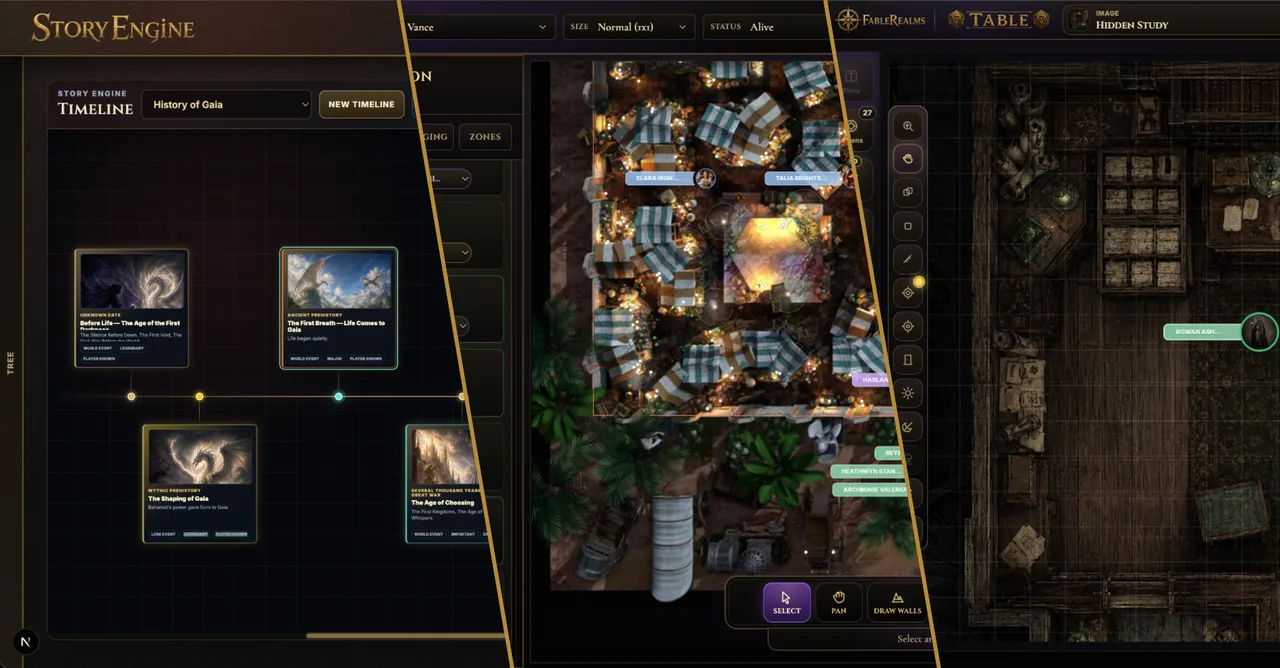
fablerealms story world table diagonal composite

What does the free FableRealms DM plan include?

If you’re looking for a free D&D campaign manager, the important question isn’t how many feature names fit on a pricing page. It’s whether the tools cover the jobs you actually do: planning what might happen, preparing what the players will see and managing what happens when the plan meets the party.

FableRealms free teir DM plan Storyteller. it includes one campaign, three characters, one active expedition and 1GB of storage, along with access to StoryEngine, WorldBuilder, DM Table and DM GuildHall. Players can join Table for free through their own player view. You can check the current limits on the FableRealms pricing page.

The three main DM tools have distinct responsibilities:

  • StoryEngine holds the campaign structure, people, places, lore, choices and outcomes.

  • WorldBuilder turns a map into a prepared scene with tokens, walls, doors, lights, fog, notes and encounter staging.

  • Table is the live play surface, with separate DM, player and projector views for online, local and hybrid sessions.

That separation matters. A location description is not the same thing as a playable map, and a prepared map is not the same thing as a live session. FableRealms keeps those jobs connected while still giving each one an interface built for its purpose.

The lists below focus on 45 practical features available through those core tools. They don’t include Realm Master additions such as five campaigns, the full World Graph, the campaign Timeline, premium dice styles, animated weather or the more complete connected-campaign memory tools. Keeping that boundary clear makes it easier to judge what you can genuinely do for free

Screenshot 2026 09 27 at 10.30.49

15 StoryEngine features for planning a campaign

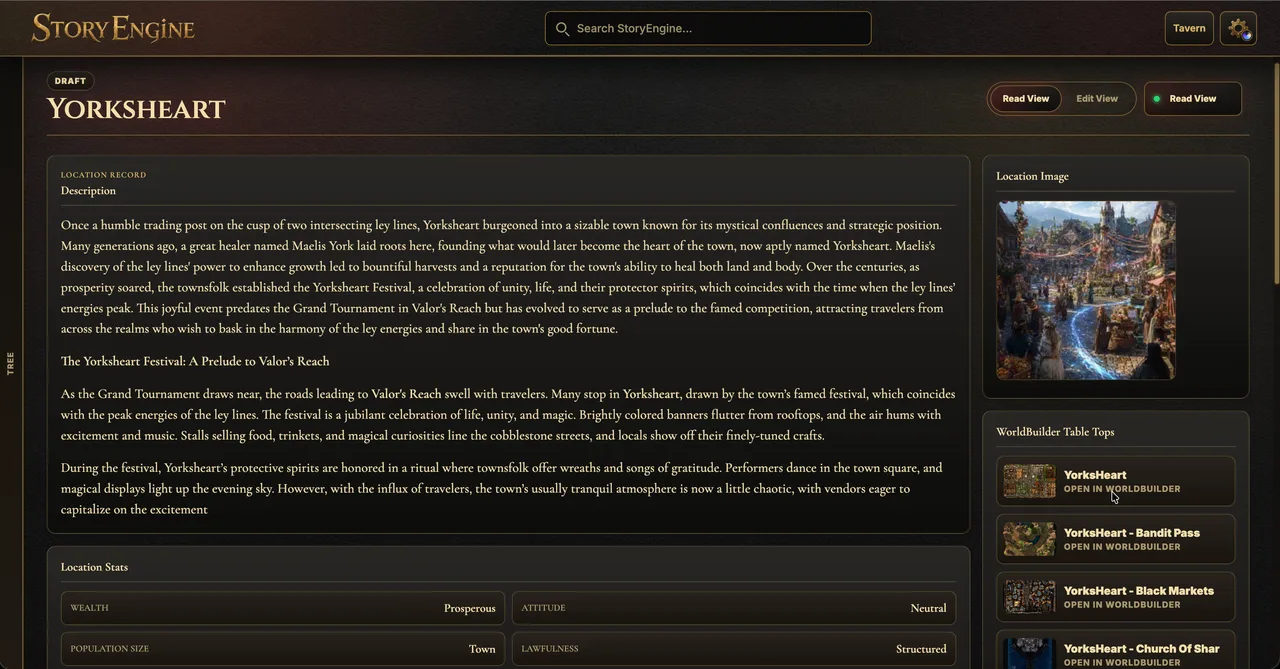
StoryEngine is the campaign-writing hub . It gives your preparation a structure without insisting that every session follow a script, which is useful because players have a remarkable talent for treating the least suspicious cupboard as the centre of the plot.

  1. Acts, Chapters and Pages: Organise a campaign from broad story arcs down to individual scenes, with a navigable hierarchy that keeps related preparation together.

  2. Modular story pages: Build each page from narrative, DM notes, checks, choices, consequences, random tables, quests, dungeons, battles and boss blocks, then arrange those blocks in the order you need.

  3. Read and Edit modes: Write with the full editing controls during preparation, then switch to a cleaner reading view when you need to run the scene at the table.

  4. Campaign-wide search: Search acts, chapters, pages, NPCs, characters, players, monsters, locations, factions and lore, with results that include useful titles, snippets and breadcrumbs.

  5. Planned checks: Record the check you expect, its normal and strong-success outcomes and an example, while keeping in mind that this is DM guidance rather than a complete automated rules engine.

  6. Meaningful choices: Give each decision a reason, options, likely outcomes, story impact and private DM notes, then record the branch the party actually chose.

  7. Conditional consequences: Attach consequences to campaign flags so a decision on one page can affect material prepared elsewhere in the story.

  8. Random tables with recorded results: Create dice ranges and outcomes, roll or choose an entry during play and add the selected result to the page outcome or campaign history.

  9. Structured quests: Keep a quest’s giver, hook, objective, location, complications, clues, encounters, resolution and rewards together, then mark it pending, completed, failed or skipped.

  10. Dungeon and trap planning: Prepare entrances, routes, hazards, rooms, puzzles and treasure alongside trap triggers, detection clues, bypasses and effects without mistaking those planning fields for automatic rules execution.

  11. Battle and boss preparation: Link monster or character records to encounters and track useful combat details, notes and outcomes before those results feed the wider campaign record.

  12. Connected campaign records: Create NPCs, important characters, monsters, factions and locations with portraits, structured details and links that make it easier to move between related people, places and events.

  13. Locations, buildings and shops: Describe a place, organise child locations, add buildings or points of interest and prepare shop stock with quantities, prices, artwork and key-item information.

  14. Lore, secrets and clues: Separate the underlying truth from what the players know, prepare clue-by-clue reveals and use states such as hidden, hinted, partially revealed or misunderstood.

  15. Outcomes and campaign history: Record what actually happened on a page so completed scenes, choices, discoveries and supported encounter results can contribute to The Chronicle rather than leaving canon buried in prep notes.

The practical benefit is that your preparation and your campaign record can live in the same system without being confused with each other. A planned consequence says what might happen; the Story Outcome says what did happen. That small distinction becomes very valuable once the campaign is several sessions old and nobody agrees on why the miller refuses to speak to the paladin.

Screenshot 2026 09 27 at 11.33.07

15 WorldBuilder features for preparing playable scenes

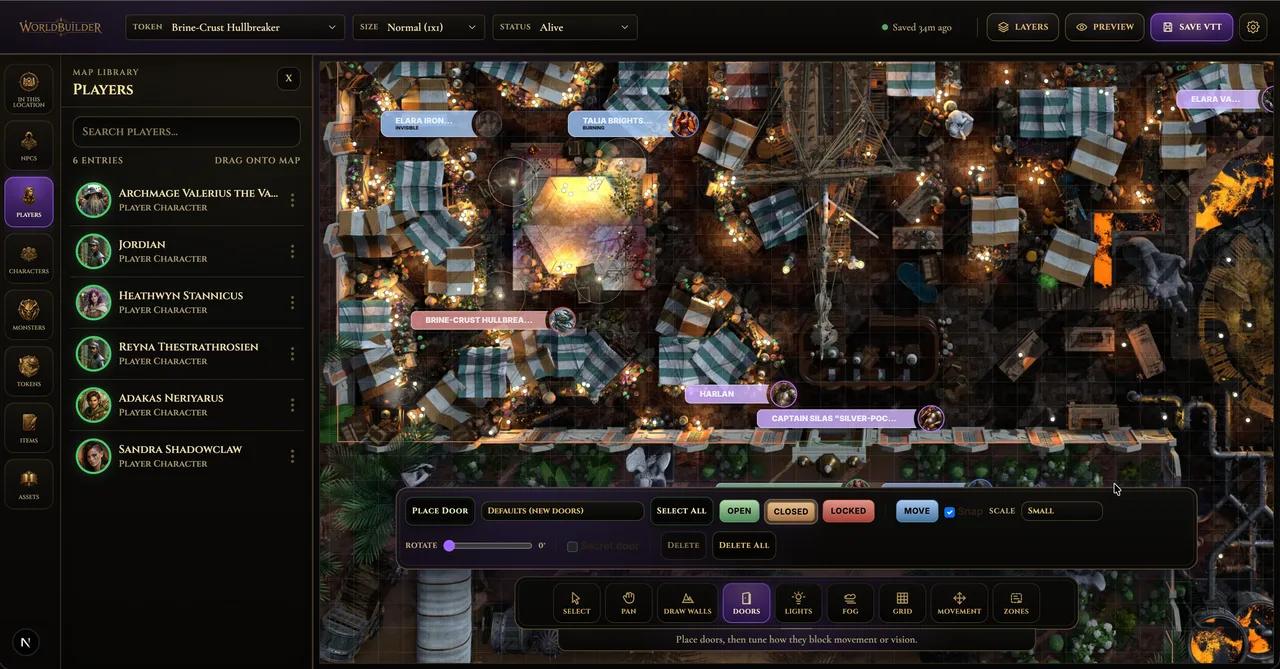
WorldBuilder is the preparation layer between campaign notes and live play. You start with a map and add the details Table will need: where movement is blocked, which doors are locked, what the party can see and what waits out of sight.

  1. Image, video and VTT map support: Bring in image maps, looping video maps or Universal VTT data, with tiled rendering available for large prepared maps where suitable source data exists.

  2. Pan, zoom, fit and measurement: Move around the canvas, zoom from 50 to 200 per cent, reset the view and measure distance using the scene’s grid.

  3. Configurable grids: Display square or hex grids and adjust cell size, opacity, colour, line width and alignment, although hex display shouldn’t be read as complete hex-rules automation.

  4. Searchable campaign assets: Browse and search available players, characters, NPCs, monsters, tokens, items and user assets, then drag the relevant records onto the scene.

  5. Grid-aware token placement: Place and move tokens with snapping and creature footprints, while repeated monster drops create distinguishable instances instead of replacing the first creature.

  6. Token presentation and status: Show artwork or initials, names and status labels, then set useful preparation states such as alive, dead, stunned, prone, poisoned, invisible, charmed or frightened.

  7. Connected wall drawing: Draw multi-point walls with optional grid, half-grid and wall-end snapping, then select, move or delete the resulting blocking geometry.

  8. Door placement and states: Add doors, move and resize them and prepare open, closed, locked or secret-door states for the live scene to consume.

  9. Door requirement notes: Describe a locked door as needing a key item, skill check, story flag or DM approval, but treat that as preparation because WorldBuilder doesn’t automatically test the requirement or unlock it.

  10. Prepared lighting: Place fire, ordinary light or magical light sources and adjust their names, colours, range and brightness before the scene opens in Table.

  11. Darkness and fog: Apply scene-wide darkness, paint or erase fog and use walls and blocking doors as boundaries for room fill when you need to conceal an enclosed area quickly.

  12. Map notes: Place numbered DM-only markers for read-aloud text, clues, secrets, traps, loot, encounters, checks, environmental effects or door notes, then edit or reposition them as preparation changes.

  13. Zones and rooms: Mark rectangular or polygonal areas with names, descriptions, colours and visibility settings so important regions can carry context into the playable scene.

  14. Movement paths and patrols: Record an ordered path or roaming points for a selected token, choose a speed and add loop or reverse behaviour for Table to play back.

  15. Encounter staging and saving: Group token snapshots for later reveals in Table, save the scene’s map, grid, tokens, notes, zones, darkness, fog and geometry, and remember that staging doesn’t automatically hide or remove the original placed token.

Walls and doors are a good example of why the three-tool workflow matters. In WorldBuilder, they’re geometry and prepared states. In Table, imported wall and door data can be used for player movement checks, while blocking geometry also contributes to party vision and darkness. Drawing the boundary during prep means you don’t have to explain in the middle of play that, no, the fighter cannot walk through the pantry wall simply because the map is a picture.

WorldBuilder does have limits worth knowing. It prepares fog but doesn’t claim a complete per-player exploration-history system. Door requirements are descriptive rather than an automatic key-and-skill resolver. Several changes update scene state in the background, but the feature catalogue doesn’t establish one universal autosave guarantee, so use the explicit save feedback before leaving a substantial editing session.

Screenshot 2026 09 27 at 11.22.26

15 Table features for running the session

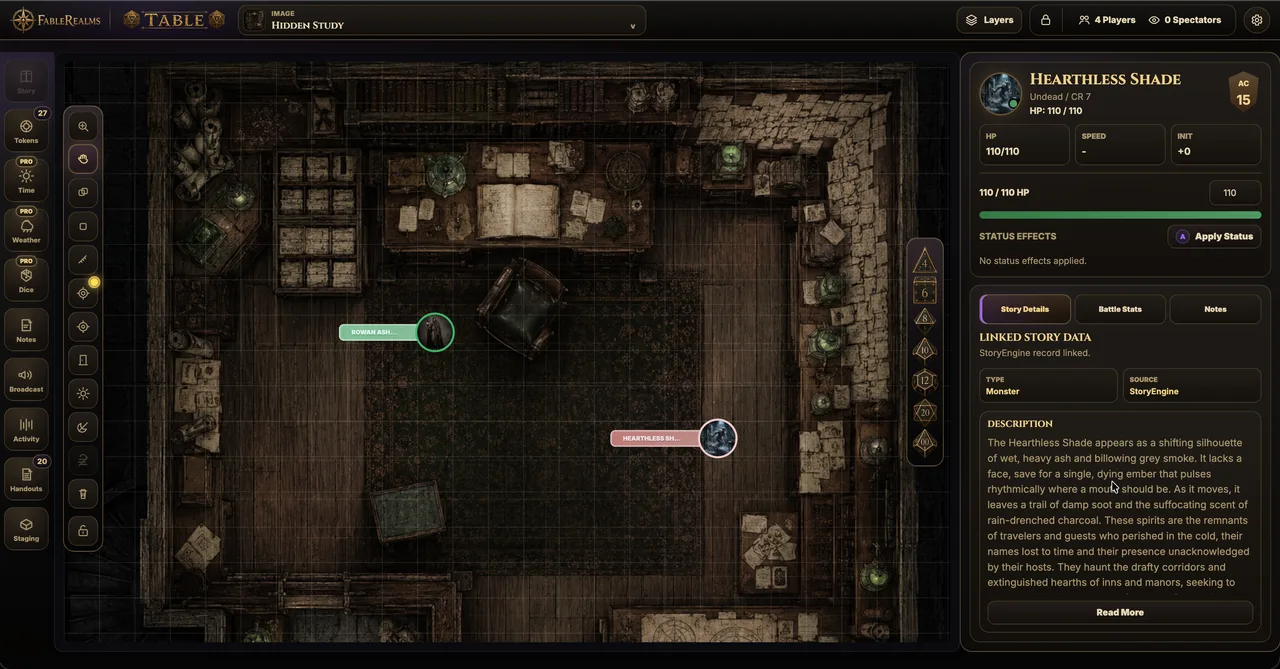
Table is the live session layer. It consumes the scene you prepared, gives the DM the controls needed to reveal and change it and presents an appropriate view to each player or shared display.

  1. DM, player and projector views: Run the session from a control-rich DM screen while players receive a focused view and a separate cinematic display serves a television, monitor or projector.

  2. Online, local and hybrid play: Connected participants can share the live table from their own devices while people in the room follow the same session on a common screen.

  3. Prepared scene loading: Browse available scenes, choose a replacement and broadcast the new map, tokens, grid and related scene state to connected viewers.

  4. Projector camera control: Pan and zoom in the DM view and send that viewport to the dedicated projector display, which scales and centres it for a different screen shape.

  5. Live token and asset controls: Search linked party, character, NPC, monster and reusable-token assets, drag them into the scene and move placed tokens with size-aware grid snapping.

  6. Movement blocking through walls and doors: Player movement checks imported blocking lines and open-door geometry, so a correctly prepared doorway can open a route that a closed or locked door prevents.

  7. Fog, darkness and party vision: Show prepared fog and calculate shared party vision from eligible player tokens and imported blocking geometry, with explored darkness dimmed in the normal player view.

  8. Map layers and display controls: Toggle useful DM layers such as walls, doors, lights, grid, zones, names and status labels without deleting the prepared content beneath them.

  9. Rulers and attention pings: Measure straight-line map distance and send coloured pings to connected viewers when the group needs to look at the same suspicious statue.

  10. AOE templates: Preview and place circles, cones, lines and squares, highlight tokens whose centres fall inside and optionally associate a condition and duration with the template.

  11. Initiative and turn tracking: Start a battle from selected tokens, roll or enter initiative, follow the active combatant and round and add new participants after combat has begun.

  12. Health and conditions: Edit combatant hit points, mark enemies defeated and apply standard or custom status effects while the live token state stays aligned with the encounter controls.

  13. Shared dice: Roll common polyhedral dice or supported character references and present the result to the table with a shared three-dimensional dice animation.

  14. Handouts, messages and session notes: Broadcast text, display linked image handouts and capture notes with scene, token or round context while the relevant moment is still fresh.

  15. Battle results back to StoryEngine: Review defeated enemies, assign kills and send supported battle events with scene, encounter, experience and loot data into the connected campaign workflow.

Table is not trying to replace the DM’s judgement with a complete automated rules engine. Its strength is keeping the common pieces of a live session visible and connected: positions, doors, vision, initiative, conditions, dice, handouts and outcomes. You still decide what a clever plan achieves, whether a roll is needed and when the rules should make room for the story.

The projector view is deliberately read-only and follows the DM’s camera, while normal players can pan, zoom and interact with tokens they own or have been assigned. During an encounter, the DM can lock player control or approve a temporary out-of-turn request. Those distinctions help a mixed group share one session without giving every screen the same controls.

How the three tools work together in practice

Imagine you’re preparing The Hollow Lantern Inn, a dark fantasy one-shot in which a storm drives the party into an inn bound to an old bargain. The guests begin to lose their names, green lanterns burn without fuel and the cellar door becomes the route to something hungry below.

Start with the possible story in StoryEngine

Create an Act for the one-shot, a Chapter for the night at the inn and Pages for the arrival, the first signs of memory loss, the investigation and the Lantern Vault. On the arrival page, add Mara Vale as an NPC, the inn as a location and the old bargain as hidden lore.

You might prepare a check that reveals strange handwriting in the guest book, a choice between confronting Mara or searching the cellar and a consequence linked to whether the party gives their names freely. The point isn’t to predict every action. It’s to keep the likely branches and the truths behind them close enough to use when the party surprises you.

Turn the inn map into a scene in WorldBuilder

Open the inn map and align the grid. Draw walls around the taproom, kitchen, service corridor and cellar. Place the cellar door and mark it locked, then add a private note describing what can be heard below. A requirement can remind you that opening it needs Mara’s key, a successful check, a story flag or direct DM approval, but you remain responsible for resolving that requirement.

Add warm lights near the fire and sickly green lights beside the lanterns. Fill the cellar with fog, place Mara and the guests, prepare a roaming path for an increasingly vacant patron and stage whatever waits in the vault. Save the scene and check its visibility before the session.

Run the changing situation in Table

Launch the prepared scene. Online players join from their devices, while local players can use the shared projector display. As the party explores, open or lock doors, reveal staged threats, move tokens, share an image handout of the guest-book page and use a ping when everyone needs to notice a lantern going dark.

If the cellar confrontation becomes a battle, select the combatants, start initiative and track hit points and conditions. When the encounter ends, review the defeated creatures and send the supported results back towards StoryEngine. Then record the actual Story Outcome: perhaps Mara was rescued, perhaps she renewed the bargain, or perhaps the inn learned every hero’s name.

That final step is what closes the loop. StoryEngine held the possibilities, WorldBuilder held the prepared space and Table held the live action; the outcome records which possibility became part of the campaign.

Frequently asked questions

Is FableRealms free for Dungeon Masters?

Yes, the Storyteller plan is free and currently includes one campaign plus access to StoryEngine, WorldBuilder, DM Table and DM GuildHall. It also publishes limits of three characters, one active expedition and 1GB of storage, so check the pricing page before relying on those figures for a larger campaign.

Do players have to pay to join Table?

No, FableRealms player experience as free. Players join through a focused view rather than the DM control interface, and a normal player needs a selected character while a spectator can observe without token control.

Is FableRealms only a D&D campaign manager?

No, the campaign-writing and scene tools are broadly useful for tabletop role-playing games, although some features use familiar D&D-style concepts such as ability scores, challenge ratings and five-foot grid measurement. Treat those areas as supported references and workflows, not proof of full automation for every game system.

Can I use my own maps?

Yes, the published WorldBuilder workflow supports image maps, video maps and Universal VTT data. Large maps can also use prepared tiled image data, although actual video playback depends on the browser and the active WorldBuilder interface consumes map sources prepared through the wider FableRealms workflow.

Do doors automatically open when a character has the right key?

No, WorldBuilder can store a key item, skill check, story flag or DM approval as a door requirement, but the reviewed workflow doesn’t automatically check inventory, resolve the roll or unlock the door. The DM still adjudicates the requirement and changes the door state in Table.

Can I play online and around a physical table at the same time?

Yes, Table is designed for online, local and hybrid play through DM, player and projector views. Remote players can use their devices while people in the room watch a television or projector, with the live scene shared through the connected Table session.

The free plan is a sensible fit if you want to run a one-shot, learn the FableRealms workflow or manage one active campaign without paying first. It lets you test the important connection points: writing a scene, preparing its map, launching a live table and recording the outcome.

The most relevant published limits are one campaign, three characters, one active expedition and 10GB of storage. Decide what “three characters” means for your intended party setup before moving a larger group across, and check the current pricing page if that limit is central to your decision. Players themselves can use the dedicated player Table experience for free.

Realm Master is aimed at DMs who need more capacity or the advanced connected features. Its current published benefits include five campaigns, 25 characters, unlimited planned expeditions, 100GB of storage, campaign snapshots and backups, party-wide Codex access, the full World Graph and Timeline, richer campaign-memory tools, premium dice presentation and animated weather or time-of-day lighting.

Whichever plan you use, allow some setup time. A connected campaign still needs useful names, links, map geometry and visibility choices. Start with one location and one session rather than attempting to encode an entire continent before the first roll. A working tavern with four rooms is more useful on game night than a flawless taxonomy for every sheep in the kingdom.